
Create your first tournament
Create the event, set it up section by section in Settings, add players, and generate the draw while the event stays Draft.
Before you begin
A director account. Use Private - link only while you set up.
- 1
Create the event
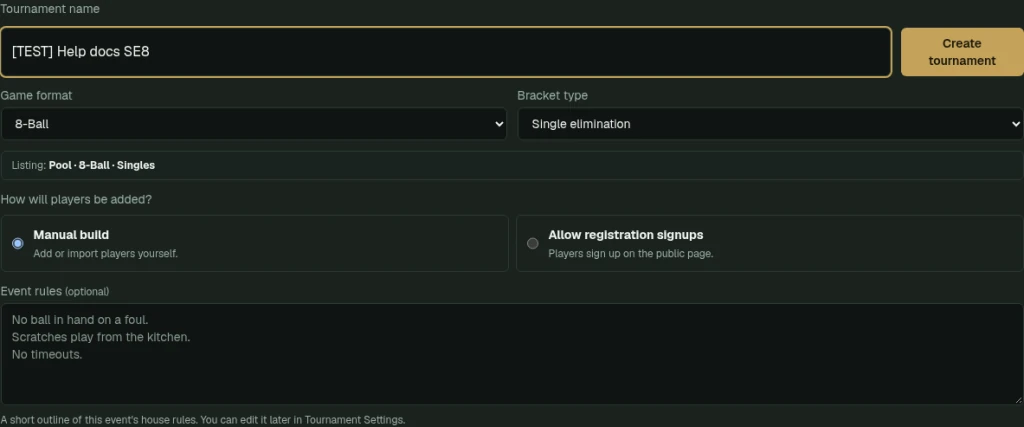
In the Director console, enter the tournament name, choose Game format and Bracket type, choose Manual build or Allow registration signups, add optional Event rules, then select Create tournament.
Name the event, choose game format and bracket type, pick Manual build or registration signups, then select Create tournament. - 2
Get oriented
The new event opens as Draft. Use the left navigation and Setup checklist to work through Identity, format, tables, entrants, and the draw.
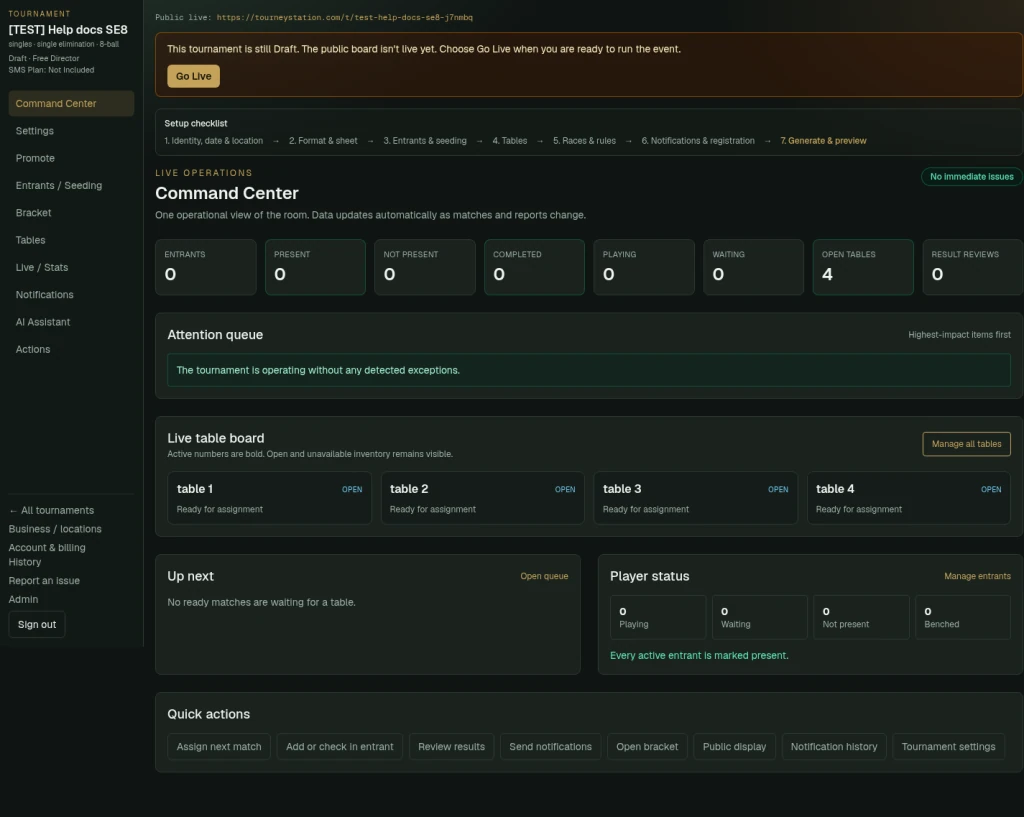
A new tournament opens as Draft. The left navigation reaches every section; the Setup checklist runs from Identity to Generate and preview. - 3
Settings → Identity
Set name, date, timezone, times, location, Public visibility, entry details, and rules. Select Save settings before switching sections.
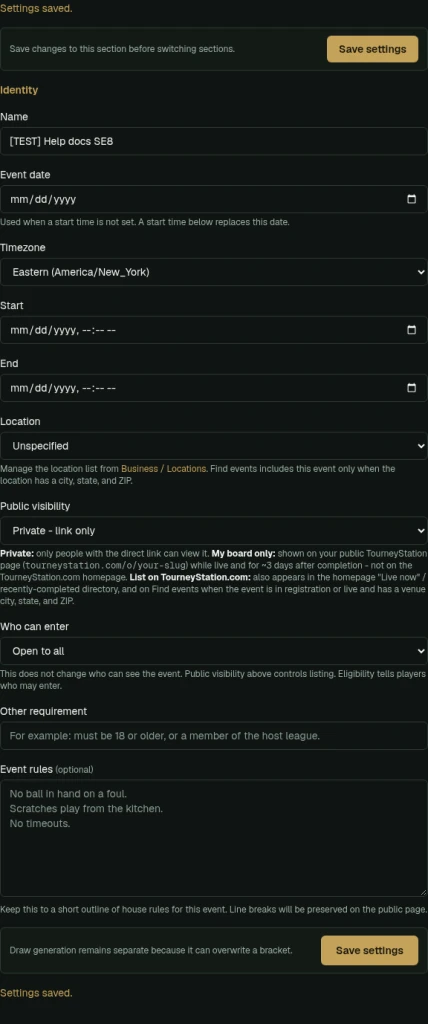
Settings → Identity. Each Settings section has its own Save settings button; save before switching sections. - 4
Settings → Format & sheet
Choose the bracket format, sheet size or Auto, and Lock bracket draw. Save settings. Changing these values does not rebuild an existing draw.
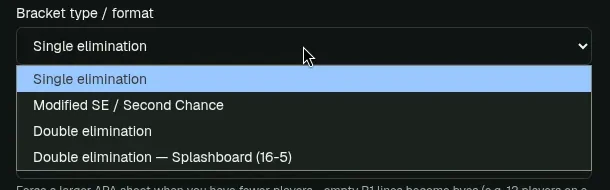
Settings → Format & sheet: the four bracket formats. - 5
Settings → Tables
Set table numbers or aliases such as 1 - TV table, then Save settings.
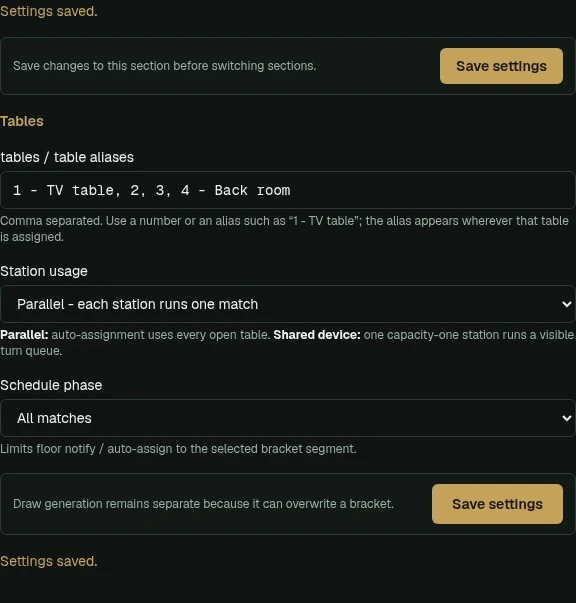
Settings → Tables. Enter table numbers or aliases such as 1 - TV table; the alias appears wherever that table is assigned. - 6
Add or import players
Go to Entrants / Seeding to add names one at a time, paste a roster, or load a .csv / .txt file. Review the preview before importing.
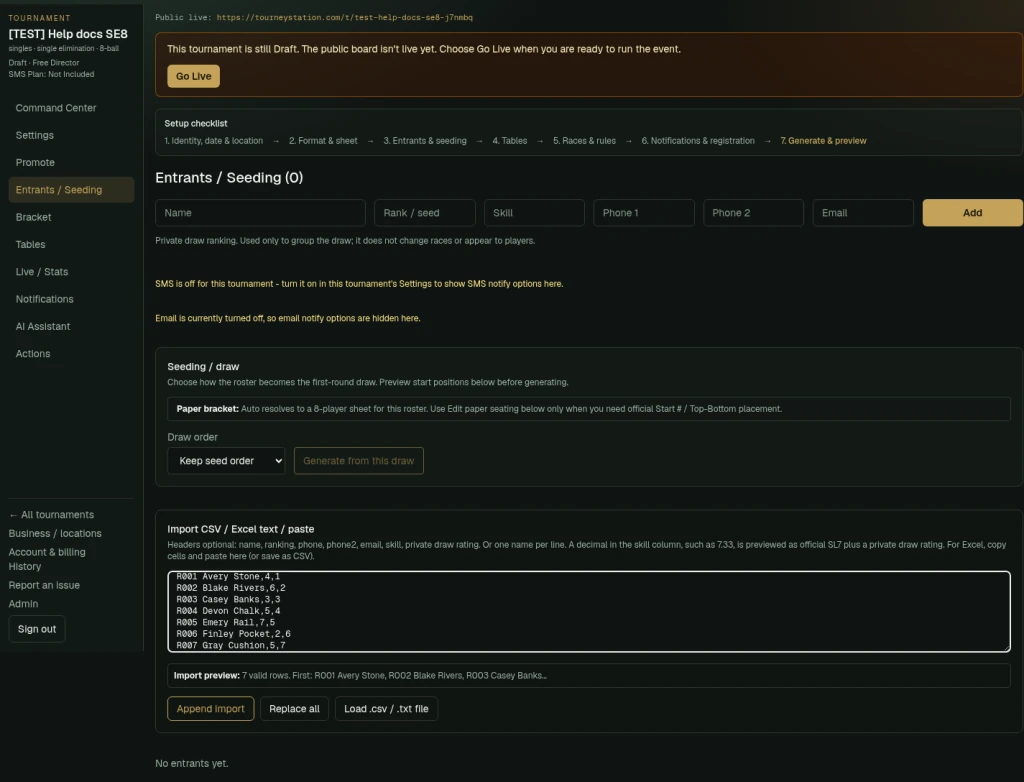
Paste rows or load a .csv / .txt file, check the Import preview, then choose Append import. - 7
Generate
Choose Draw order, then Generate from this draw. The Paper bracket line shows which sheet Auto resolved to.

Choose Draw order, then Generate from this draw. The paper bracket line shows which sheet Auto chose. - 8
Review the bracket
Check byes, table assignments, and Preview public board from Bracket. The draw is locked after generation.
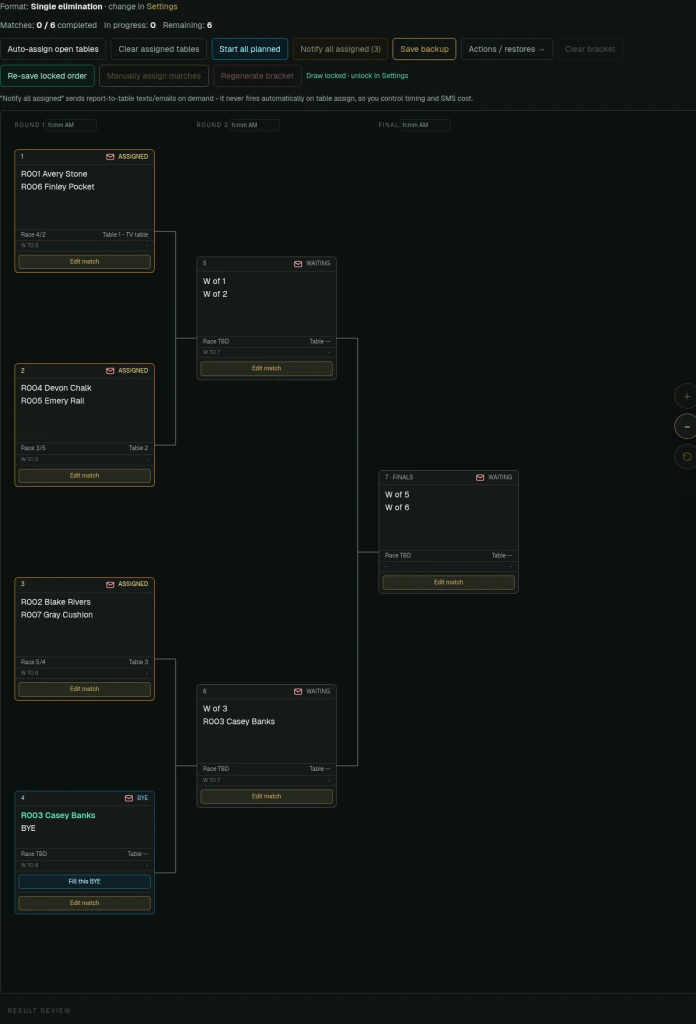
The bracket after Generate. The draw is locked, ready first-round matches are assigned to tables, and Notify all assigned only sends when you choose it. - 9
Go Live when ready
The event remains Draft until you select Go Live. Assigning tables, starting matches, benching, and Fill BYE do not change its status.

The Go Live banner shows while the event is Draft or Registration. Status changes only when you choose Go Live.
What to check afterward
A generated, locked draw on a Draft event that only you can see.
Races & rules, Notifications, and Registration are optional Settings tabs. Regenerating with OVERRIDE replaces results and table assignments.